การติดตั้ง NativeRest
Install NativeRest on Windows
Nativerest สามารถใช้งานได้กับ Windows 7, 8, 10, 11 (64 บิต)
หากคุณยังไม่ได้ดาวน์โหลด Nativerest ให้ไปที่หน้า download page.
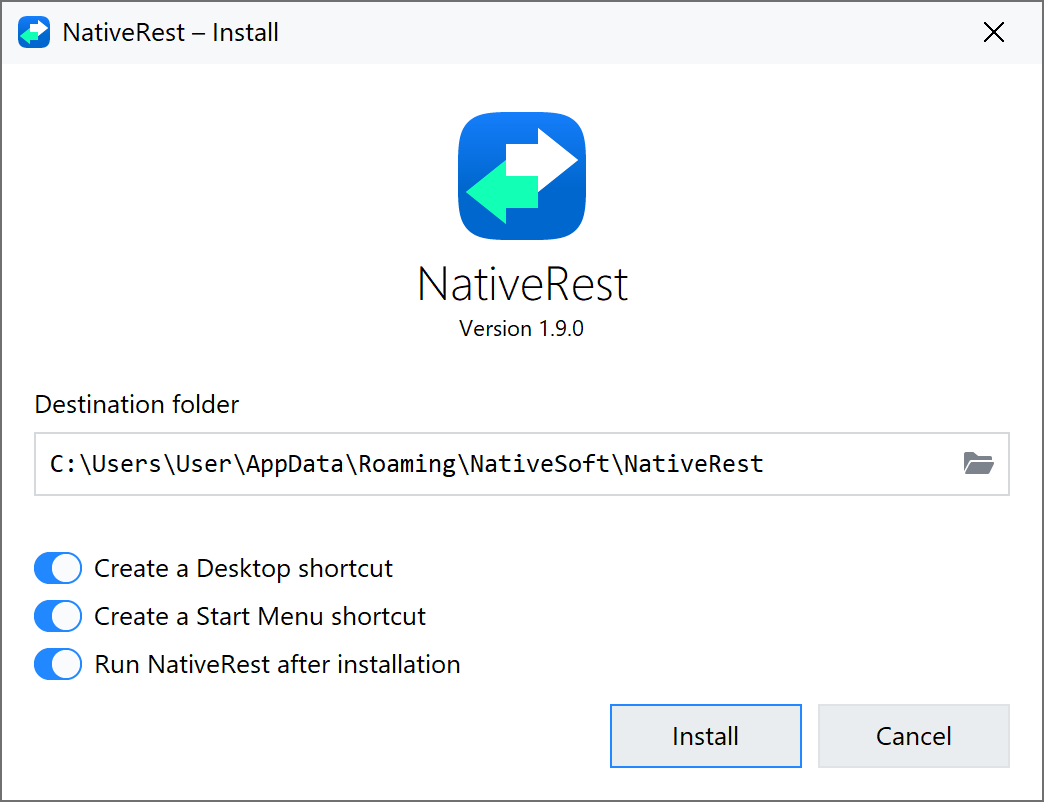
ดับเบิลคลิกที่ตัวติดตั้ง exe-file เพื่อติดตั้ง
แนะนำไม่ให้เปลี่ยนโฟลเดอร์ปลายทางมิฉะนั้นการอัปเดตอัตโนมัติอาจหยุดชะงักได้
คุณสามารถทำเครื่องหมายในช่องเพื่อสร้าง Desktop shortcut และ Start Menu shortcut จากที่นี่ได้
คลิกปุ่ม Install หลังจากนั้น Nativerest จะถูกติดตั้งไปยังเครื่องของคุณ
Silent Install Mode
When you pass the /silent or /verysilent command line switch, the installer does not display its GUI.
[เมื่อคุณผ่านสวิตช์บรรทัดคำสั่ง /silent or / /urysilent ตัวติดตั้งจะไม่แสดง GUI]
You can use the following syntax to specify installer parameters.
[คุณสามารถใช้ไวยากรณ์ต่อไปนี้เพื่อระบุพารามิเตอร์การติดตั้ง]
nativerest.1.0.0.installer.exe /silentNativerest.1.0.0.installer.exe /Silent
Parameters Description
[คำอธิบายพารามิเตอร์]
/silent – Run in silent mode.
[/เงียบ - ทำงานในโหมดเงียบ]
/verysilent – Everything is like /silent, but the application does not launch after installation.
[/อย่างมาก - ทุกอย่างเป็นเหมือน /เงียบ แต่แอปพลิเคชันไม่เปิดตัวหลังจากการติดตั้ง]
/update – Update the existing installation.
[/อัปเดต - อัปเดตการติดตั้งที่มีอยู่]
/uninstall – Uninstall the existing installation.
[/ถอนการติดตั้ง - ถอนการติดตั้งการติดตั้งที่มีอยู่]
/dir="..." – Overrides the default installation path %APPDATA%\Roaming\NativeSoft\NativeRest/dir = "... " -
[แทนที่เส้นทางการติดตั้งเริ่มต้น %appdata %\ Roaming \ nativesoft \ nativerest]
Exit Codes
[ออกรหัส]
0 – No errors.
[0 - ไม่มีข้อผิดพลาด]
1 – Common installation error.
[1 - ข้อผิดพลาดในการติดตั้งทั่วไป]
2 – Destination folder access denied.
[2 - การเข้าถึงโฟลเดอร์ปลายทางถูกปฏิเสธ]
Updating NativeRest
By default, NativeRest is configured to check for updates automatically and install when a new version is available.
[โดยค่าเริ่มต้น Nativerest จะถูกกำหนดค่าให้ตรวจสอบการอัปเดตโดยอัตโนมัติและติดตั้งเมื่อมีเวอร์ชันใหม่]
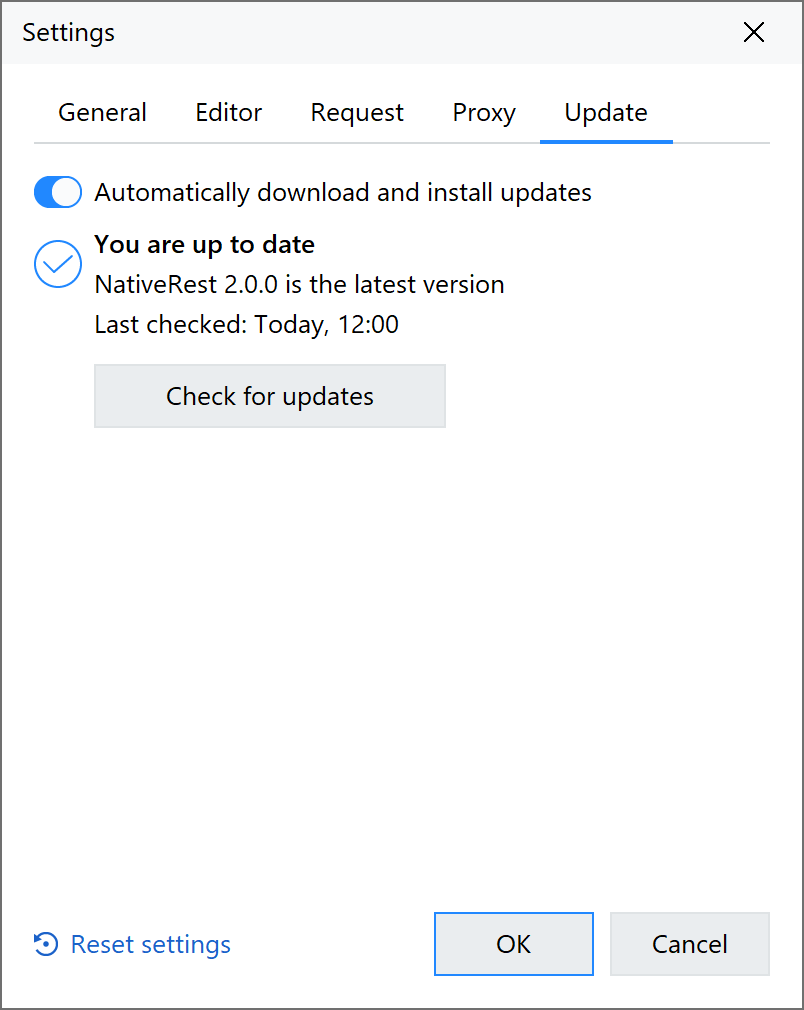
You can turn off automatic updates and check for updates ay any time in Update tab.
[คุณสามารถปิดการอัปเดตอัตโนมัติและตรวจสอบการอัปเดต AY ได้ตลอดเวลาในแท็บการอัปเดต]
Uninstall NativeRest
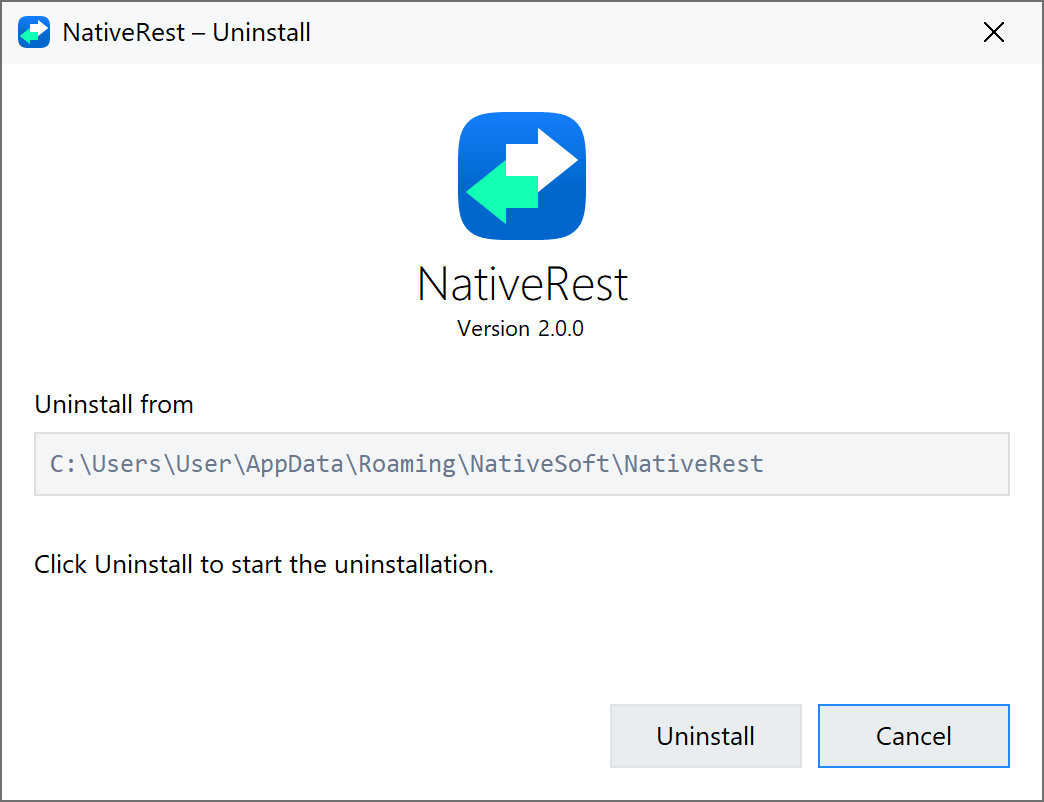
To uninstall NativeRest from a Windows computer simply go to the settings menu on Windows and select Apps. From the Add/Remove Programs section, click on the app and select to uninstall.
[หากต้องการถอนการติดตั้ง Nativerest จากคอมพิวเตอร์ Windows เพียงไปที่เมนูการตั้งค่าบน Windows และเลือกแอพ จากส่วนเพิ่ม/ลบโปรแกรมคลิกที่แอพและเลือกเพื่อถอนการติดตั้ง]
Install NativeRest on macOS
Since version 2.1.1 (June 2024), NativeRest is available on macOS. The set of features is identical to the Windows application.
[ตั้งแต่เวอร์ชัน 2.1.1 (มิถุนายน 2024) Nativerest สามารถใช้ได้กับ MacOS ชุดของคุณสมบัติเหมือนกับแอปพลิเคชัน Windows]
If you haven’t already downloaded NativeRest, visit the download page. Intel and Apple Silicon chips are supported.
[หากคุณยังไม่ได้ดาวน์โหลด Nativerest ให้ไปที่หน้าดาวน์โหลด รองรับชิป Intel และ Apple Silicon]
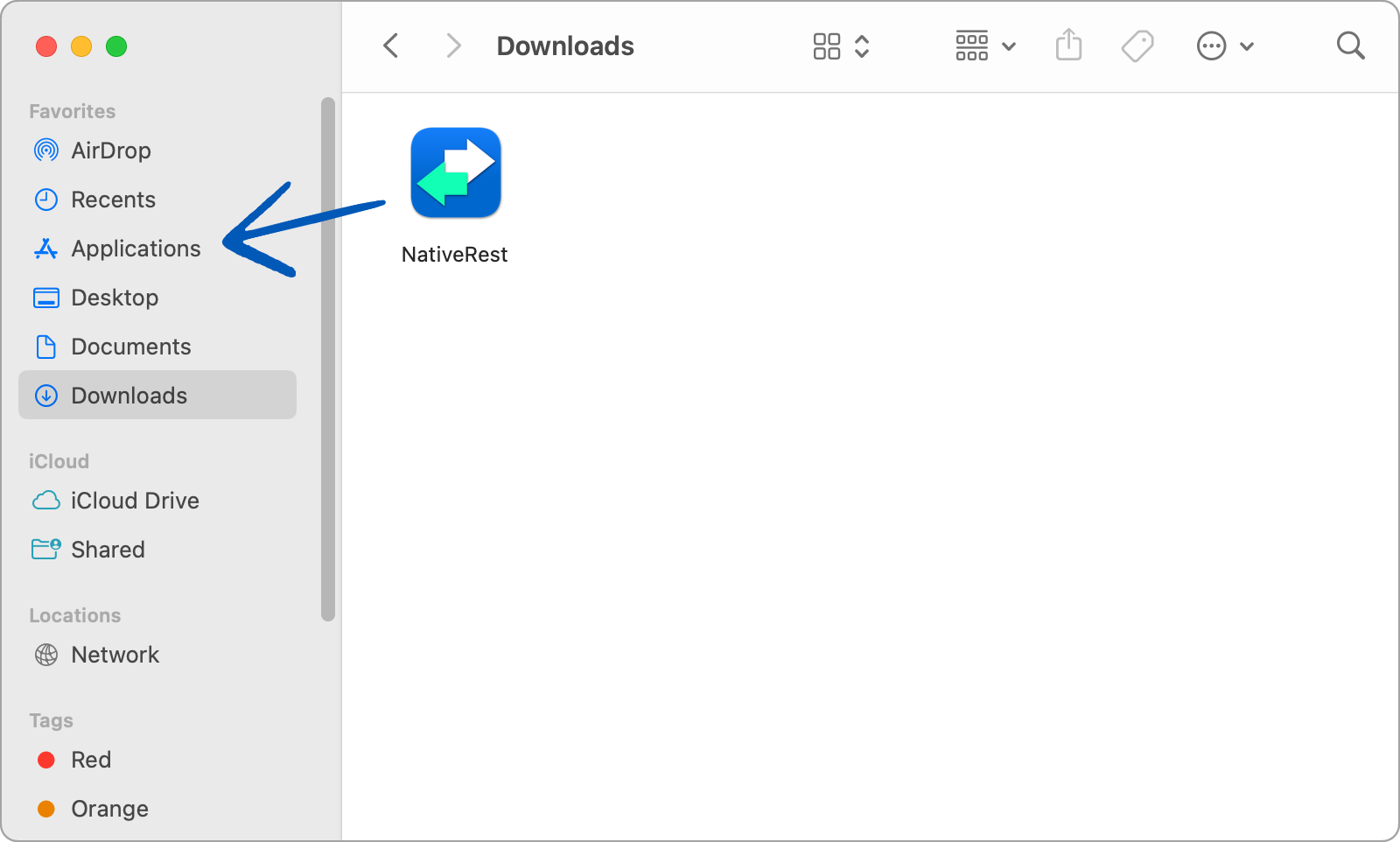
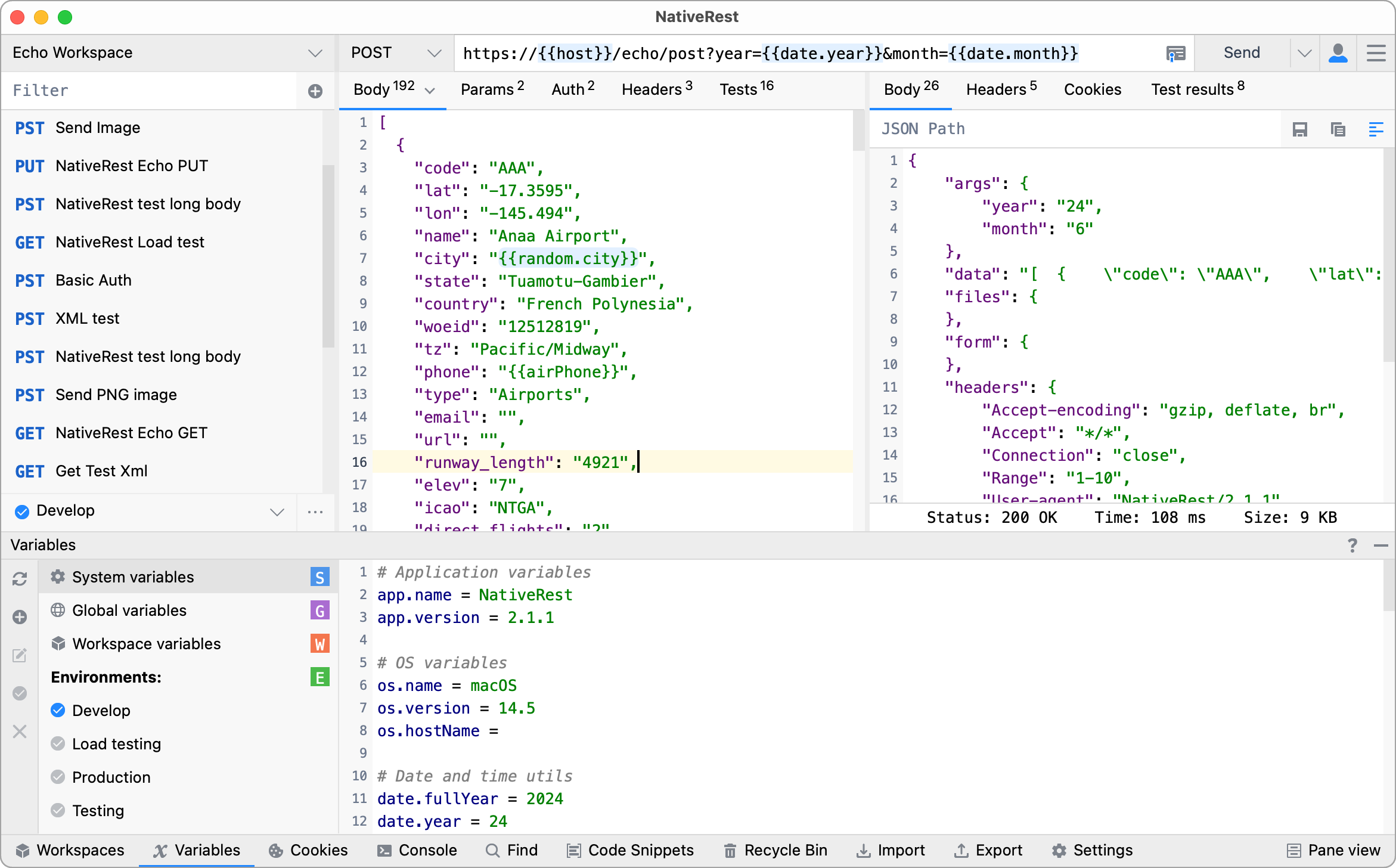
In our case, NativeRest was downloaded to the Downloads folder and Safari browser automatically unpacked the downloaded zip-archive. If this does not happen for you, unpack the zip-archive manually. Move NativeRest to the Applications folder using drag and drop.
[ในกรณีของเรา Nativerest ถูกดาวน์โหลดไปยังโฟลเดอร์ดาวน์โหลดและเบราว์เซอร์ Safari โดยอัตโนมัติจะแกะกล่อง zip-archive ที่ดาวน์โหลดมาโดยอัตโนมัติ หากสิ่งนี้ไม่ได้เกิดขึ้นกับคุณให้แกะซิป-Archive ด้วยตนเอง ย้าย Nativerest ไปยังโฟลเดอร์แอปพลิเคชันโดยใช้การลากและวาง]
When you first launch, enter your NativeSoft account login and password to activate NativeRest or defer this action for 7 days (free trial period).
[เมื่อคุณเปิดตัวครั้งแรกให้ป้อนการเข้าสู่ระบบบัญชี Nativesoft และรหัสผ่านเพื่อเปิดใช้งาน Nativerest หรือเลื่อนการกระทำนี้เป็นเวลา 7 วัน (ระยะเวลาทดลองใช้ฟรี)]
Install NativeRest on Linux
Since version 2.1.3 (July 2024), NativeRest is available on Linux. The set of features is identical to the Windows application.
[ตั้งแต่เวอร์ชัน 2.1.3 (กรกฎาคม 2024) Nativerest มีให้บริการบน Linux ชุดของคุณสมบัติเหมือนกับแอปพลิเคชัน Windows]
If you haven’t already downloaded NativeRest, visit the download page. In our case, NativeRest was downloaded to the Downloads folder.
[หากคุณยังไม่ได้ดาวน์โหลด Nativerest ให้ไปที่หน้าดาวน์โหลด ในกรณีของเรา Nativerest ถูกดาวน์โหลดไปยังโฟลเดอร์ดาวน์โหลด]
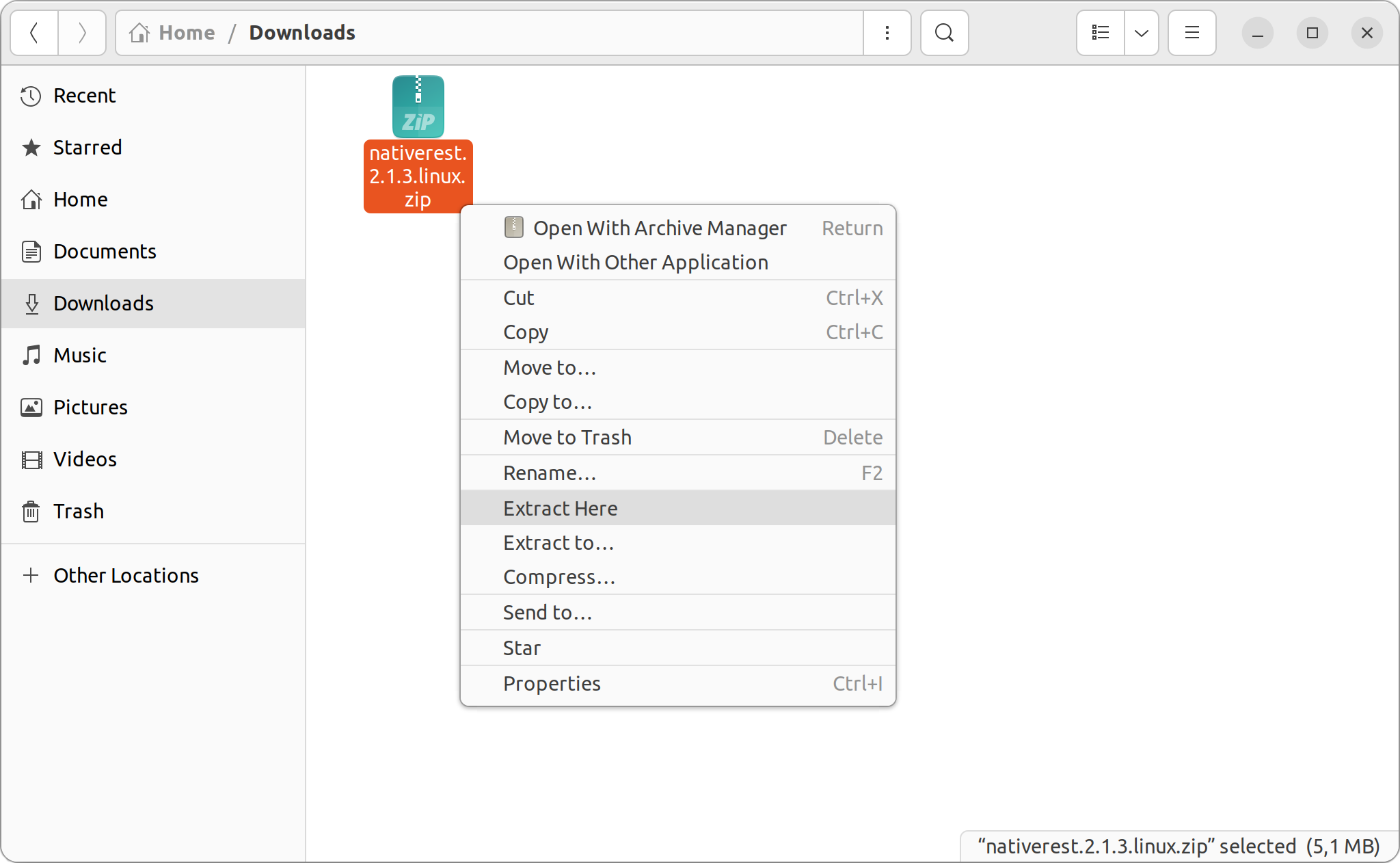
Unzip the downloaded archive to access the executable file.
[คลายซิปคลังเก็บที่ดาวน์โหลดเพื่อเข้าถึงไฟล์ที่เรียกใช้งานได้]
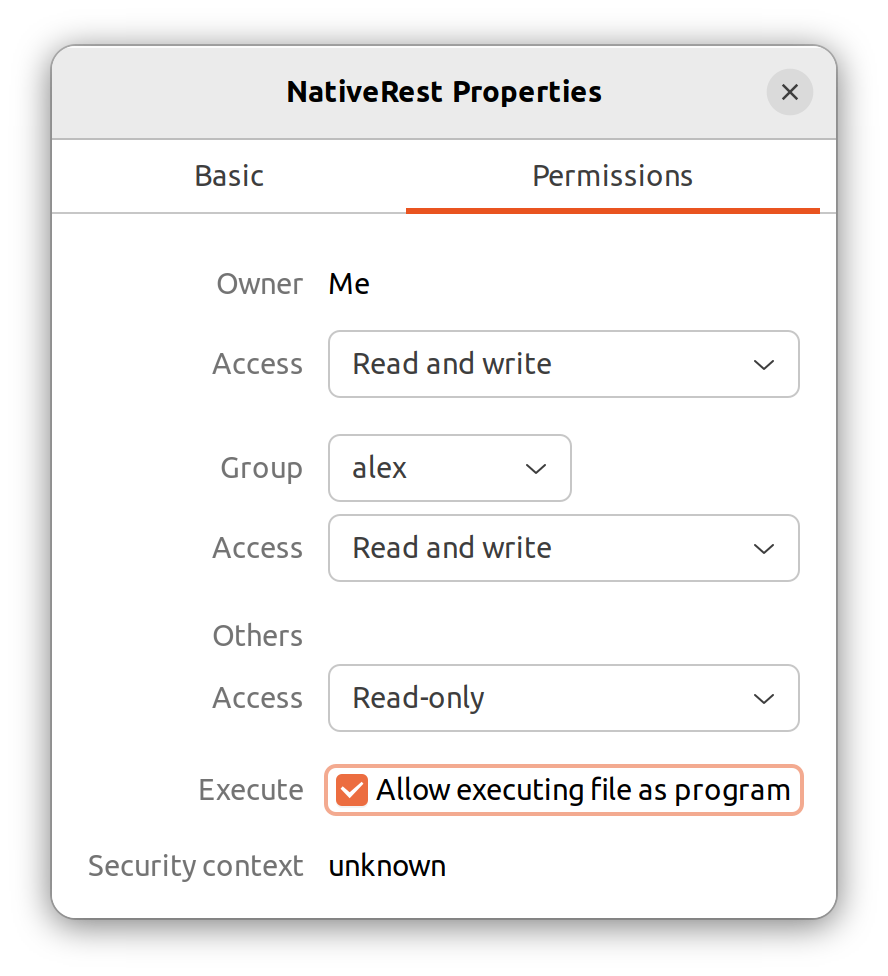
Open the Properties window, go to tab Permissions and set Allow executing file as program.
[เปิดหน้าต่างคุณสมบัติไปที่การอนุญาตแท็บและตั้งค่าอนุญาตให้ดำเนินการไฟล์เป็นโปรแกรม]
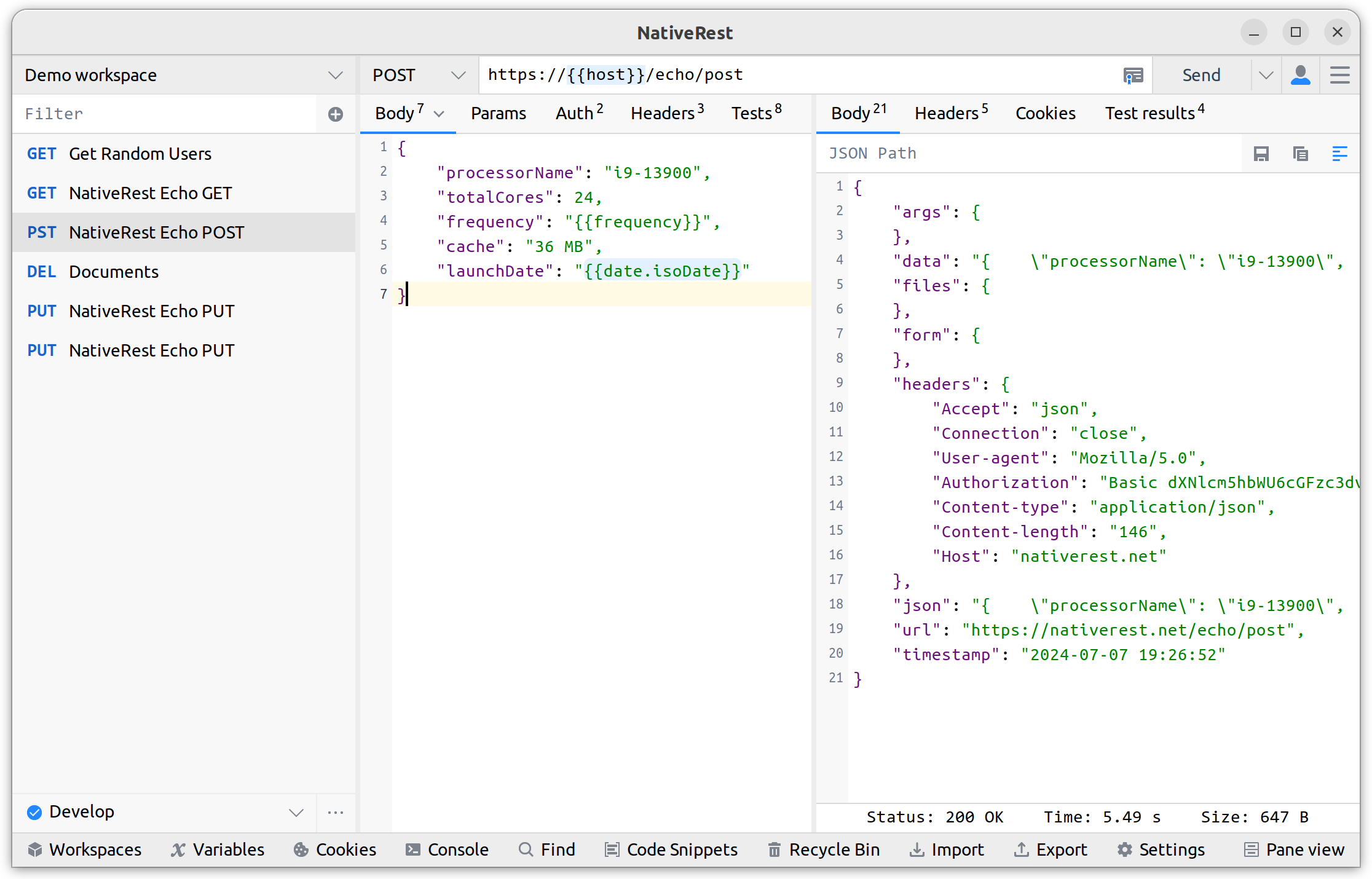
After this, NativeRest can be launched.
[หลังจากนี้ Nativerest สามารถเปิดตัวได้]
Tested Linux Distributions
NativeRest has been tested on the following Linux distributions:Nativerest
[ได้รับการทดสอบในการแจกแจง Linux ต่อไปนี้:]
- Ubuntu 22.04.3 Ubuntu 22.04.3
- Linux Mint 21.3 Linux Mint 21.3
- Debian GNU/Linux 12.6 debian gnu/linux 12.6
NativeRest will likely work on other Linux distributions as well.
[Nativerest มีแนวโน้มที่จะทำงานในการแจกแจง Linux อื่น ๆ เช่นกัน]